MetaForge
A downloadable tool
MetaForge
Bulk metadata editor for music artists.
Drag your track list into order, set album/artist info once, batch-apply titles, track numbers, and cover art—then hit Create Album. MetaForge saves clean copies with proper tags into your project’s tracks/ folder. No more clicking through file properties 20 times.
Why
I kept wasting time renaming, re-numbering, and fixing tags across whole albums. MetaForge makes the boring part fast and consistent so I can get back to making music.
Key features
-
Album Projects: Create a project per album/EP and come back later.
-
Drag-to-Order: Click and drag to lock your final track sequence.
-
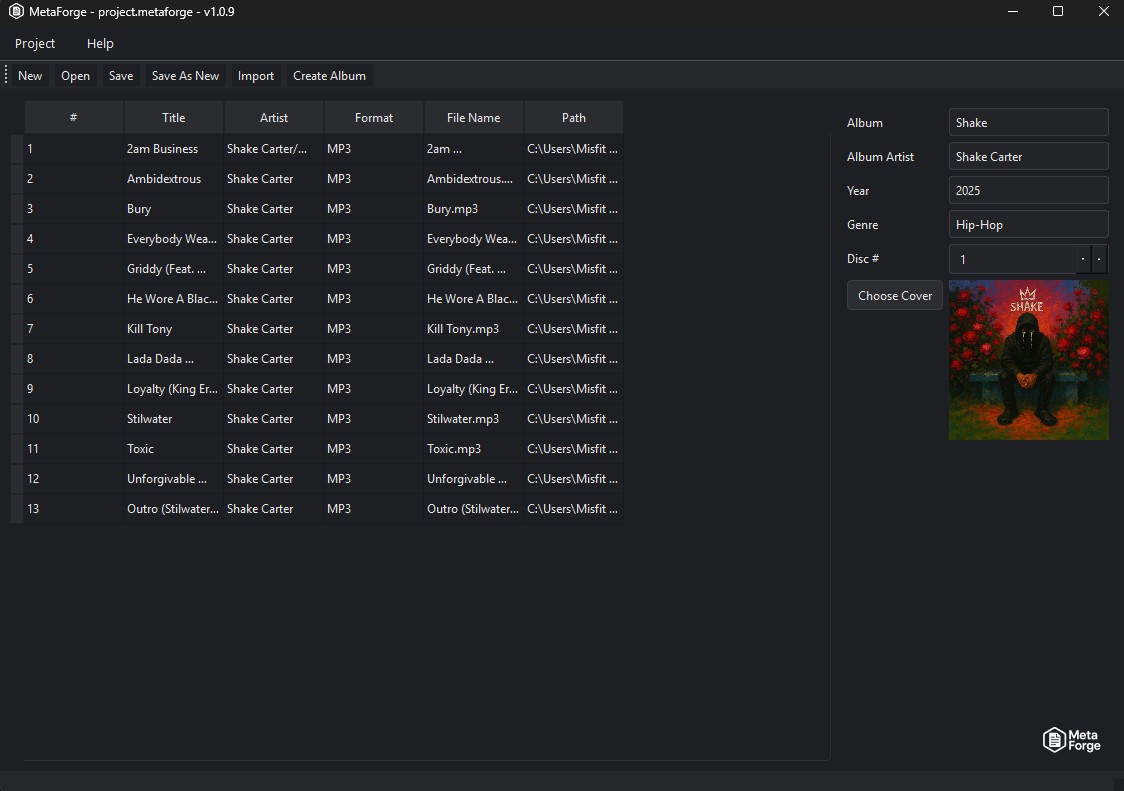
Batch Tagging: Set Album, Album Artist, Year, Genre once; auto-number tracks.
-
Per-Track Edits: Title and filename overrides in one place.
-
Cover Art Embed: Apply your album cover to all files in one click.
-
Safe Output: Tagged copies saved to
./tracks/inside your project folder.
Coming soon: optional in-place tagging (no copies), FLAC/M4A support, templates, and export/convert.
How it works
-
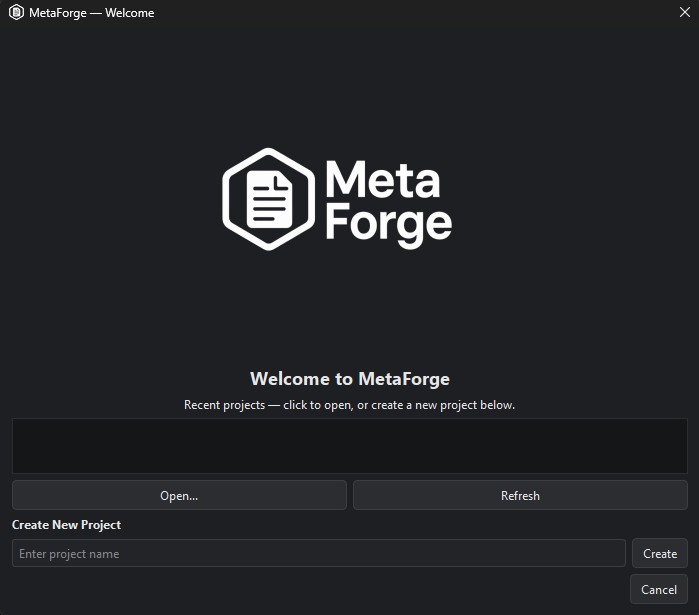
New Project → name your album.
-
Import songs.
-
Drag to arrange into the right order.
-
Edit track titles & filenames as needed.
-
Fill album-wide fields (album title, album artist, year, etc.).
-
Add cover art.
-
Click Create Album → MetaForge writes metadata and saves tagged copies into
tracks/.
Supported (alpha)
-
Input/Output: MP3, WAV (tags embedded; note some players ignore WAV tags).
-
Tags: Title, Artist, Album, Album Artist, Track #, Year, Genre, Cover Art.
Privacy
All processing happens locally. Your audio never leaves your machine.
Download
Install instructions
MetaForge — Quick Start
This installer contains MetaForge v1.0.9 — a small desktop app for editing audio track metadata and creating album-ready copies of your songs.
How to use MetaForge
Run the exe to install.
1) Import your songs
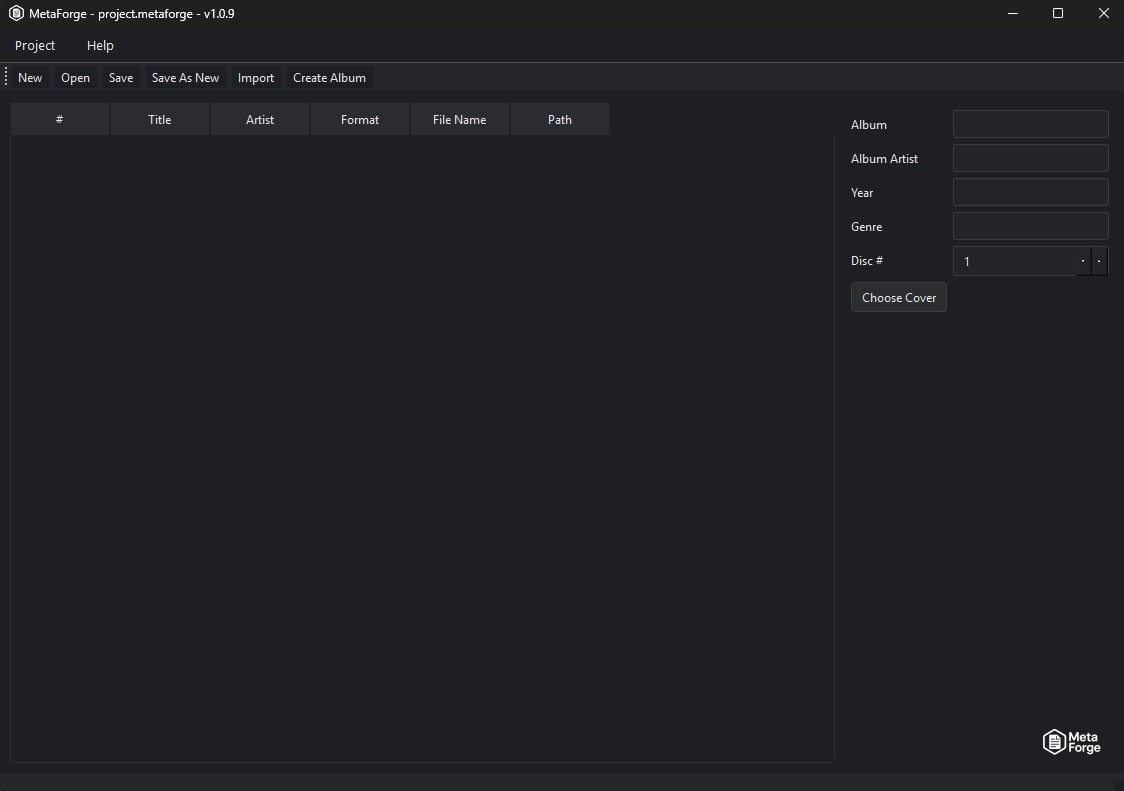
- Click the Import button in the toolbar and select the audio files you want to work on.
- MetaForge copies the selected files into the project's "tracks" folder so edits are
applied to project copies (original files are not modified).
2) Arrange track order
- Click and drag tracks in the list to set the album/play order.
- Reordering updates track numbers automatically.
3) Edit per-track metadata
- Double-click a cell in the track list to edit fields such as Title or File Name.
- Editing the File Name will rename the copied file inside the project (the original
file outside the project remains untouched).
4) Bulk edit album metadata
- Use the album panel to edit Album Title, Album Artist, Year, Genre, Disc number, etc.
- These fields apply to all tracks when you write the tags (Create Album / Save Tags).
5) Add cover art
- Use the album form to choose an image file as the album cover.
- The cover art will be copied into the project and embedded into files when tags are written.
6) Create album (write tags)
- When you're happy with the order and metadata, click Create Album (or Save Tags)
to write metadata into the copies in the project.
- The app will prompt for confirmation before writing tags. Backups may be created
depending on project settings.
7) Where to find the results
- The app saves project files and audio copies under the project folder. Inside that folder
you'll find a "tracks" subfolder containing the audio files with updated metadata.
Notes
- Originals are never modified; MetaForge works on copies stored in the project folder.
- Removing a track from the project deletes the copied file in the project's tracks folder;
originals outside the project are not affected.
Enjoy using MetaForge — it helps you prepare album-ready audio files with consistent
metadata and embedded covers.
Leave a comment
Log in with itch.io to leave a comment.